
Set Up Your Blog
Configure your blog settings to personalize and deploy your AI-powered blog.
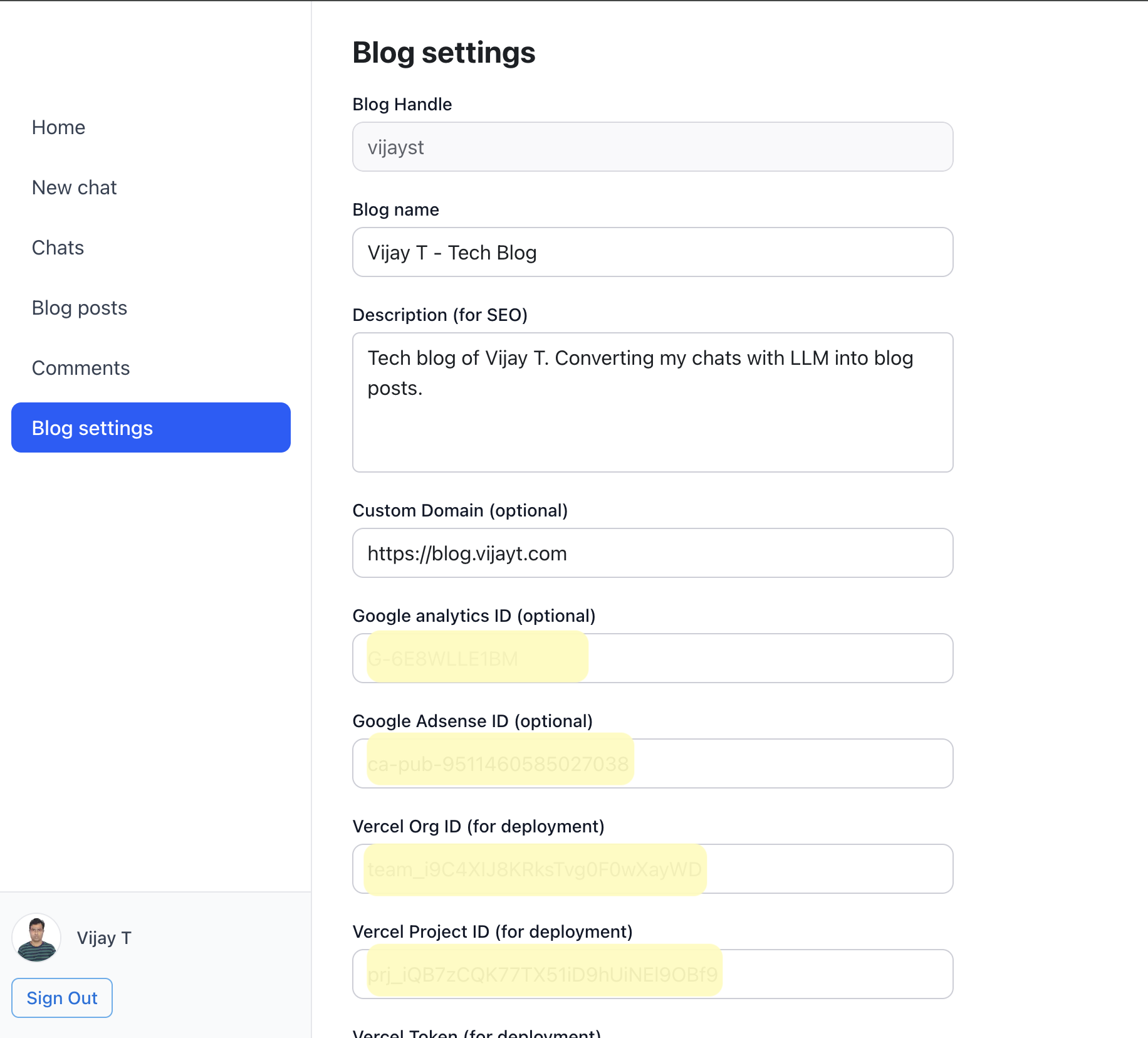
Accessing Blog Settings
To access your blog settings, navigate to the Blog settings page from your dashboard or use the direct link to /blog/publish. This page is where you'll configure all aspects of your blog.
Essential Settings
Blog Handle
The blog handle is your blog's unique identifier. Once set, it cannot be changed. This handle will be part of your blog's URL and helps users find your blog. Choose something memorable and easy to remember.
Note:
This field is read-only after your initial setup. Make sure you're happy with your choice before saving!
Blog Name
The blog name is the display name for your blog. This appears in headers, titles, and throughout your blog's interface. Unlike the handle, you can change this at any time.
Description (SEO)
A well-written description helps search engines understand what your blog is about. This description appears in search results and social media previews when people share your blog posts.
Tip:
Keep your description concise (150-160 characters is optimal for SEO) and include relevant keywords.
Blog Image
Upload a blog image (1024 x 1024 pixels) that represents your blog's brand. This image will appear as your blog's avatar and in various places throughout your site.
Supported formats: PNG, JPEG, GIF, and WebP.
Advanced Settings
Custom Domain
Want to use your own domain? Enter your custom domain to host your blog on a professional URL like blog.yourdomain.com or yourdomain.com.
How to set up:
- Purchase a domain from any registrar
- Enter the domain in this field
- Update your DNS records to point to your blog
- Deploy your blog using the Deploy button
Google Analytics ID
Connect Google Analytics to track your blog's performance. Enter your Measurement ID (format: G-XXXXXXXXXX) to start monitoring visitors, page views, and user behavior.
Google AdSense ID
Monetize your blog with Google AdSense. Enter your Publisher ID to display relevant ads and earn revenue from your blog traffic.
Deployment Settings
To deploy your blog to Vercel, you'll need to provide your Vercel credentials. These settings are optional if you're just starting but essential when you're ready to go live.
Vercel Organization ID
Your Vercel Organization ID identifies the team or organization that owns the project. Find this in your Vercel dashboard under Organization Settings.
Vercel Project ID
The Vercel Project ID uniquely identifies your project in Vercel. Locate this in your project settings in the Vercel dashboard.
Vercel Token
A Vercel Token (also called a deployment token) authorizes automated deployments. Generate a token in your Vercel account settings under Tokens.
Security Notice:
Your Vercel token is sensitive information. Keep it secure and never share it publicly. The token field is masked in the interface.
Actions
Save
Click the Save button to save all your blog settings. This updates your blog configuration immediately. Always save your changes before leaving the page.
Deploy
The Deploy button builds and deploys your blog to Vercel. Make sure you've configured your Vercel credentials (Org ID, Project ID, and Token) before deploying.
Before Deploying:
- Verify your Vercel credentials are correct
- Ensure your custom domain DNS is configured (if applicable)
- Save all your blog settings
- Check that your blog image and other assets are uploaded
Delete
The Delete button permanently removes your blog and all associated data. This action cannot be undone, so use it with caution.
Warning:
Deleting your blog removes all posts, comments, and settings. This is irreversible!
Best Practices
Start Simple - Set up your blog handle, name, and description first. Advanced features like custom domains and analytics can be added later.
Test Locally - Preview your blog locally before deploying to ensure everything looks and works as expected.
Secure Your Credentials - Never share your Vercel token or other sensitive credentials. Use environment variables for additional security.
Optimize SEO - Write a compelling description that includes relevant keywords to help your blog rank better in search results.
Backup Your Content - Regularly backup important blog posts and settings, especially before making major changes.
Troubleshooting
Deployment Fails
If deployment fails, verify your Vercel credentials are correct and that you have sufficient permissions. Check the Vercel dashboard for detailed error logs.
Custom Domain Not Working
Ensure your DNS records are correctly configured. It may take up to 24-48 hours for DNS changes to propagate. Use DNS lookup tools to verify your records.
Image Upload Fails
Make sure your image is in the correct format (PNG, JPEG, GIF, or WebP) and dimensions (1024 x 1024 pixels). Large files may also fail to upload; try optimizing your image.
Need Help?
If you encounter any issues or have questions about setting up your blog, check our documentation or reach out to our support team. We're here to help you succeed!
Ready to Get Started?
Now that you understand the blog settings, it's time to configure your blog and start publishing amazing content powered by AI!